
Stitch Screenshots Together Into One Long Image
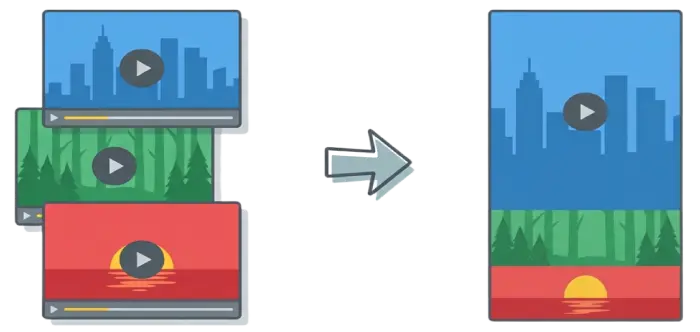
Stack movie subtitle frames, chat threads, receipts or any screenshots into one long image. Crop each one to the part that matters. Runs in your browser — free, no account, no watermark.
Upload Image
• Drag & Drop
• Click to Upload
• Paste
Maximum 50 images
Maximum 10MB per image
Core Features
Subtitle-Focused Image Stacking
Designed specifically for movie and video screenshots. First image shows the full frame, following images reveal only subtitle areas.
Pure Front-End Processing
No server uploads. No image storage. No account required. All processing happens locally in your browser.
Real-Time Preview (WYSIWYG)
What you see is exactly what you export. No trial-and-error exports. Accurate size and layout control.
Flexible Editing Controls
Order adjustment, Full/Stacked modes, fine-grained height control. Unified global settings for borders.
High-Quality Export
Export PNG, JPG, or WEBP with high-quality and 2x resolution available to everyone. No forced watermark.
What you can stitch
One tool, four common jobs. Crop each screenshot to the part you want to keep.
Movie quotes & subtitles
Keep the first frame whole for context, then crop each following screenshot individually to show only its subtitle band.
Chat threads
Keep each WhatsApp or Telegram screenshot as a whole frame and stack them at one width into an image that reads like a single scroll.
Receipts & statements
Capture a long receipt in sections, crop each screenshot to the relevant part, and stack them into one picture for an expense claim.
Long web pages & articles
Capture a page in sections, crop each screenshot to the part you need, and stitch the parts back together.
How to Use
Step 1: Upload Screenshots
Drag and drop images or click to upload. Supports JPG/PNG/WEBP. Auto-sorted by timestamp.
Step 2: Preview Layout
First image full, others stacked. Real-time preview matches export.
Step 3: Edit Images
Move images, switch Full/Stacked modes, adjust stack height individually.
Step 4: Global Settings
Adjust alignment, borders, and signatures.
Step 5: Export
Download as JPG, PNG, or WEBP. High resolution available.
FAQ
Is this tool really free?
Yes! SubtitleStitch is 100% free with no hidden fees, no account required, and no limits on usage.
Are my images uploaded to a server?
No. This is a pure front-end tool. All images are processed locally in your browser and never uploaded.
Do I need to create an account?
No account is required. Every feature is free to use.
Why is only the first image fully visible?
By default, the first image is fully visible to provide full context. The rest are in overlay mode (stack mode) by default, optimized for subtitle screenshots. However, you can manually toggle any image (except the first one) between full visible mode and overlay mode using the toggle button on each image.
How many images can I upload?
You can upload up to 50 images per stitch.
Is there a daily export limit?
No. There is no daily export limit.
Will exported images lose quality?
No forced quality downgrade. High quality and 2x export are available to everyone.
Does this work on mobile devices?
Yes. The interface is responsive and works on mobile, though desktop provides the best editing experience.
Can I upload videos directly?
No. Please take screenshots from videos and upload the image files.
Can I stitch chat or WhatsApp screenshots?
Yes. Set each image to Full mode to keep the whole frame, and the tool will stack them at a common width.
How many screenshots can I stitch together?
You can stitch up to 50 screenshots at a time and export the result as PNG, JPG, or WEBP, with a 2x resolution option.